Tesla Integration
The Tesla integration in the Integration Marketplace provides data from your Tesla vehicle. Create a new data bucket or data to an existing data bucket.
What You Need to Get Started
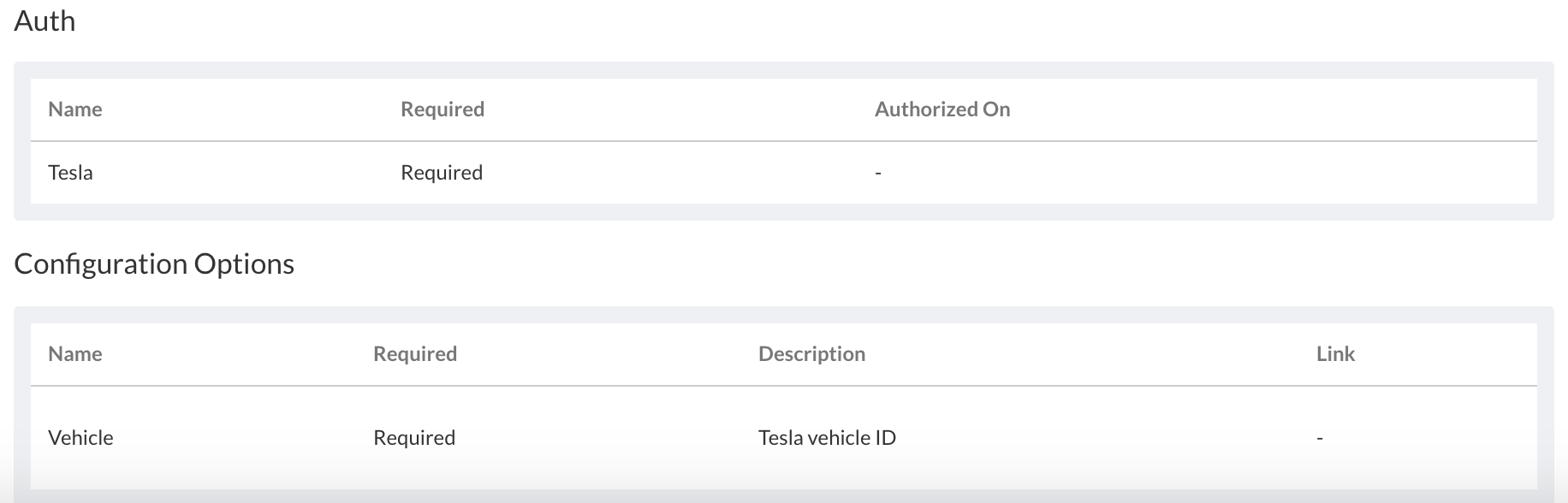
To get started you need to authorize the integration to access your Tesla account. You need to enter your Tesla account username and password.
Begin Setup
Go to the Tesla integration page by clicking the details button. Click Begin Setup to open the Setup window. You'll need to fill out the following information:
- Integration Name - Name for managing this integration. If you choose to send data to a new bucket this will also be used as the bucket name.
- Vehicle - Choose the Tesla vehicle you want to monitor.
- Choose a Bucket - The data can be sent to a new data bucket that will be created or an existing data bucket already created. If you choose to create a new bucket, select an existing Initial State Access Key to use. If you want to send data to an existing bucket, use the dropdown to choose the existing bucket.
- Data - You can choose to send all available data or select specific data from this source.
- Frequency - Select the frequency that you want the data to be updated.
Once you make all your selections you can click Start Integration.
If you selected to send the data to an existing bucket, go to that bucket to find your new Tiles created. If you selected to create a new bucket, click the link to go to this new bucket. If you opted to send all signals to a new bucket, a bucket layout will be imported so you will see all your Tiles and a background already setup. You can change your Tiles and background as you like.
Dashboard Design Templates
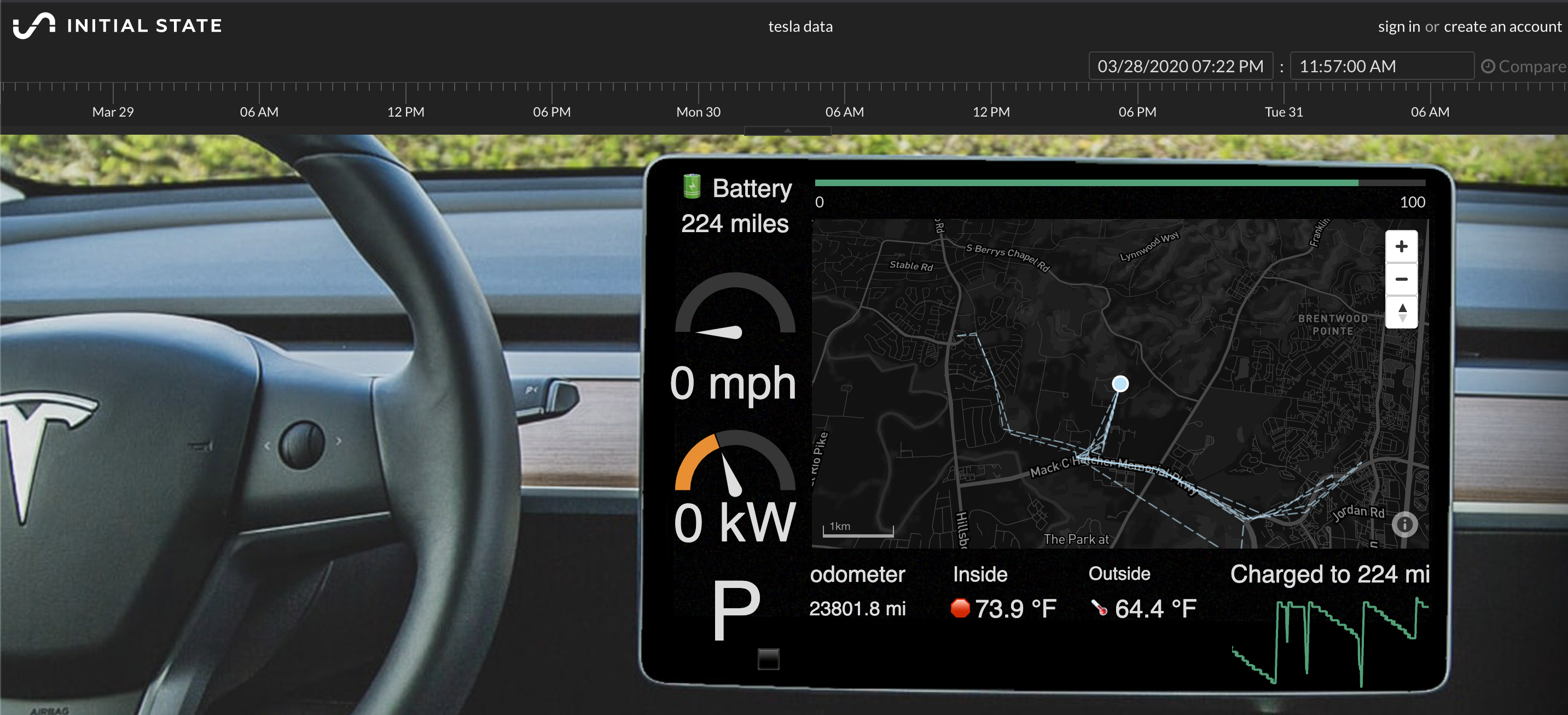
Looking for inspiration or a starting point for your dashboard design or maybe a mobile dashboard design to complement your desktop dashboard? You can easily import any of the following Tiles dashboard templates into your account for a quick start (see the Importing a Dashboard Design Template support article).
| Preview (click for hi-res) | Details | |
|---|---|---|
 added Apr 3, 2020 |
Title: Tesla Interior |
|
 added Apr 3, 2020 |
Title: Tesla Mobile |
Triggers
There are multiple options for useful Triggers that can be set for your Tesla dashboard.
Odometer Trigger - You can set a Trigger to be alerted when you reached a threshold for your odometer. This will let you know if you've been driving a little too much and want to minimize your miles for resale/trade in value.
Battery Trigger - You can set a Trigger to be alerted when your battery drops below a threshold. This will let you know that your Tesla needs charging soon.
Location Trigger - You can set a geofence Trigger to send alerts to let family or friends know when you are nearby.