Setting up a Geofence
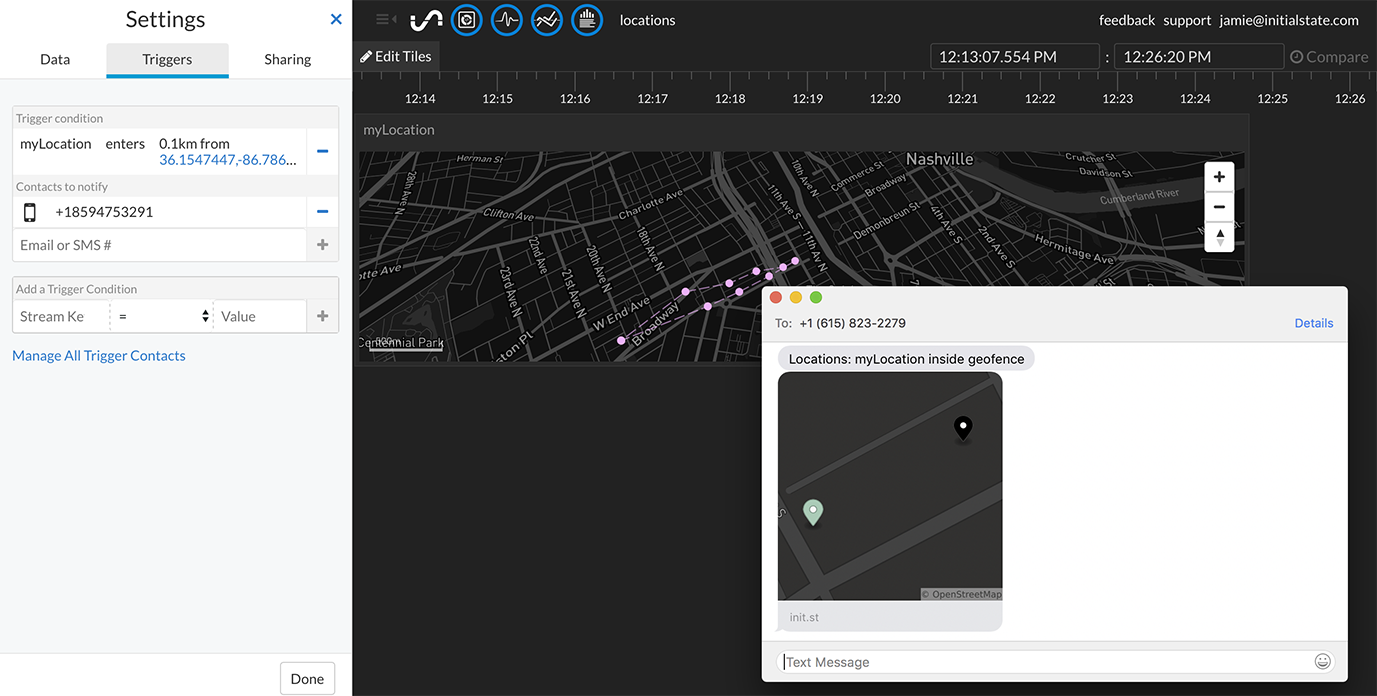
To setup a geofence trigger, you will need to supply the latitude and longitude of the location as well as the radius in km around the location that will set the trigger perimeter.
The conditional operator, enters, will trigger when a location data stream (streaming in valid latitude, longitude coordinates) transitions from outside the geofence to inside the geofence. The conditional operator, exits, will trigger on a transition from inside to outside the geofence.
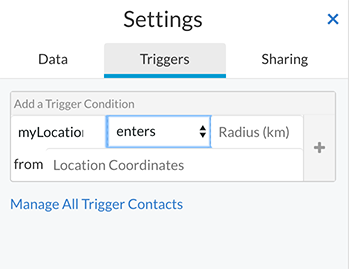
- From the desired data bucket settings (the "settings" link under the bucket name on the bucket shelf), select the Triggers tab.
-
Select the stream key that contains valid latitude,longitude values (e.g. 36.154749,-86.7867043). -
Select the conditional operator, either "enters" or "exits". -
Enter the geofence radius in km. -
Enter the geofence center in latitude,longitude coordinates (e.g. 36.154749,-86.7867043). -
Click '+' to add the trigger. -
Select the desired action (e.g. SMS, email).
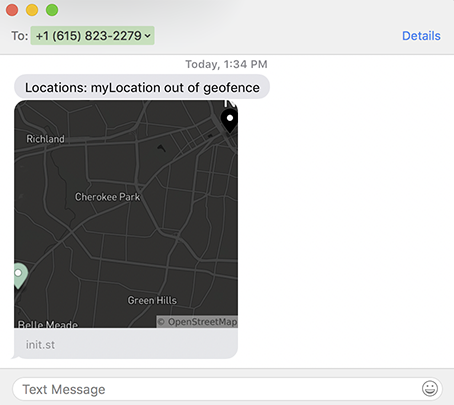
When triggered, the message alert will contain a URL (e.g. init.st/nsnaxfp). This URL links a preview image of the map with the geofence center and triggered location marked.
Tip: You can easily test out a Geofence trigger setup by sending in data through URL parameters (example of testing a geofence via URL parameters).