Edit Dashboard Layout on Mobile Device (touchscreen)

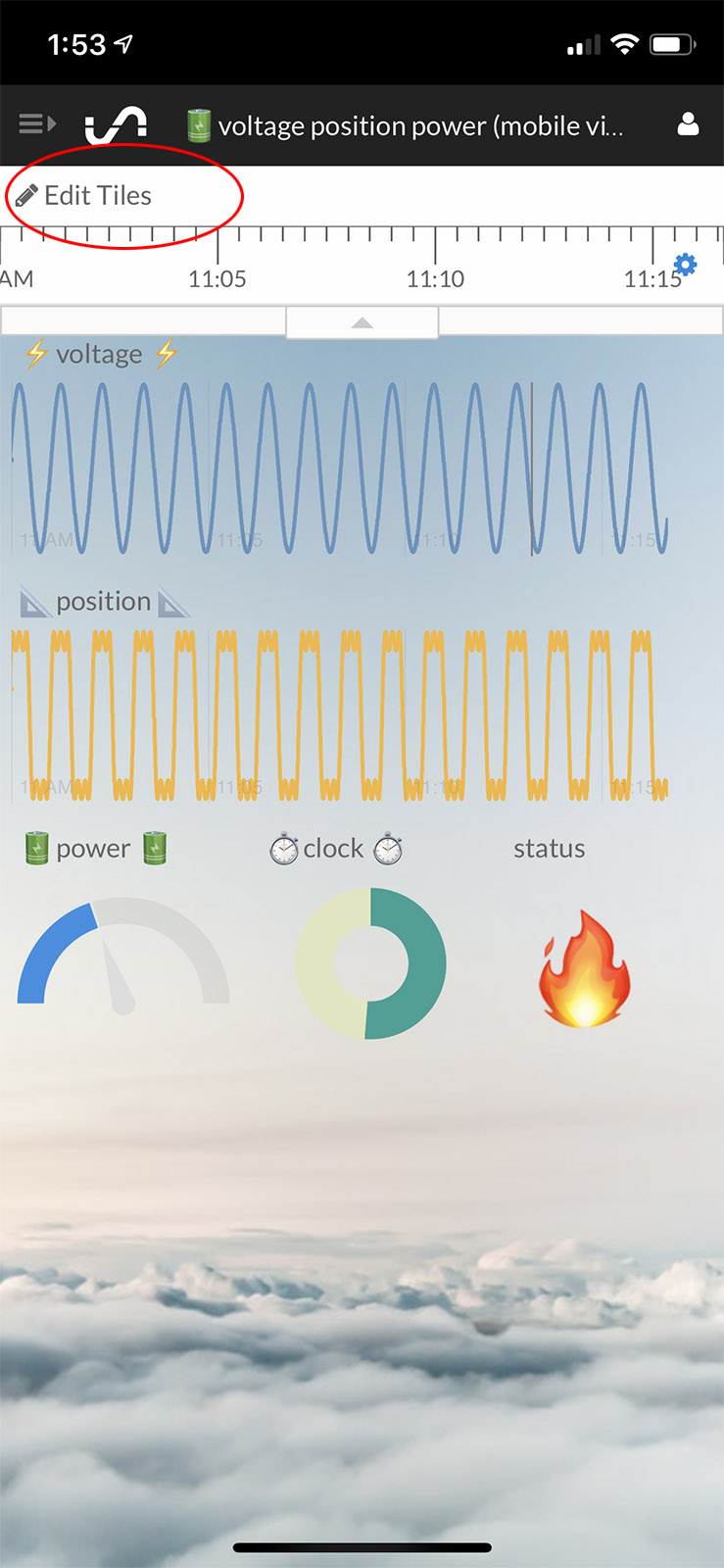
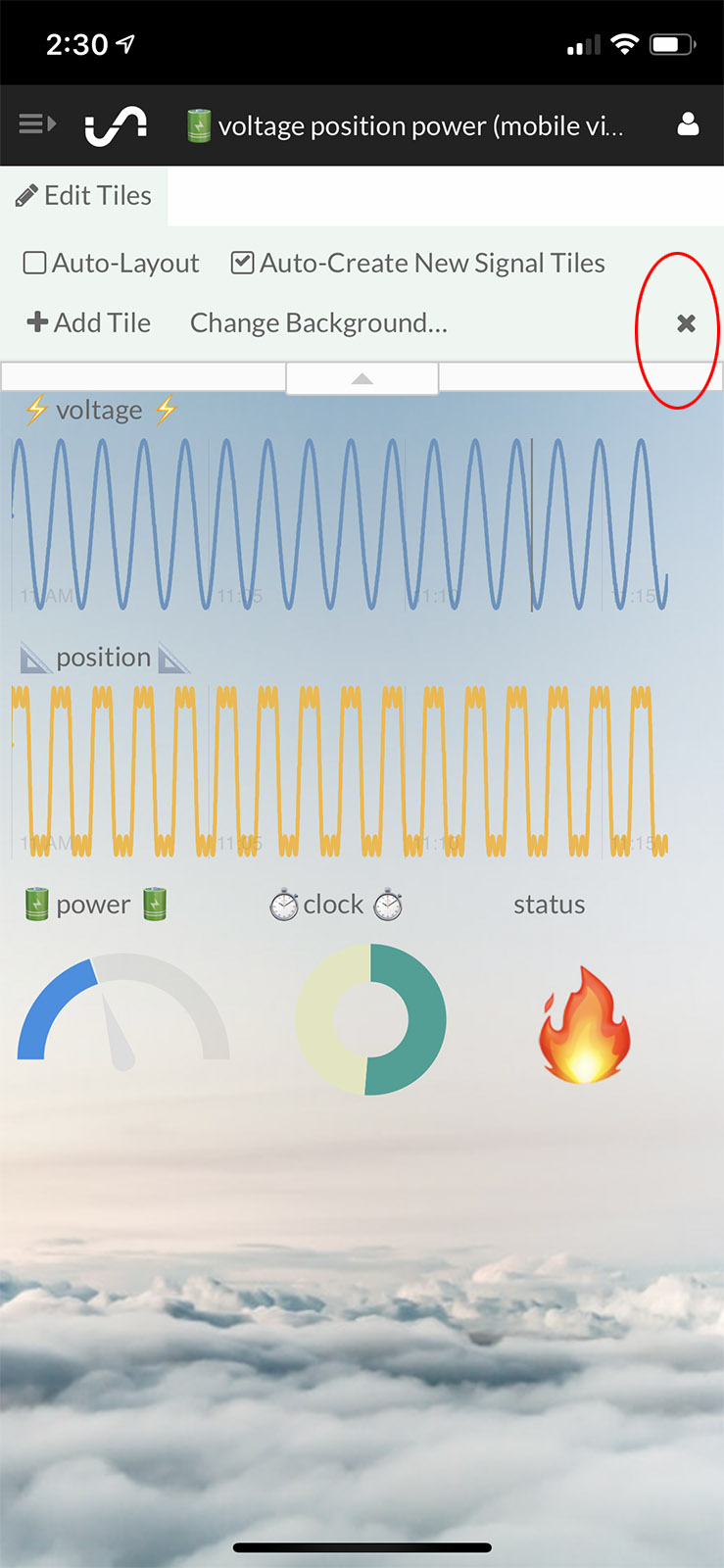
While we recommend you do most of your Tiles dashboard layout editing on your desktop, you can also modify your dashboard on your mobile device. To edit your Tiles dashboard on your mobile device, click on the "Edit Tiles" link in the top left corner. The top timeline toolbar will change to the Edit Tiles menu bar (if you do not see the "Edit Tiles" icon, you may need to expand your timeline by clicking on the timeline arrow icon ... see this article for more information).

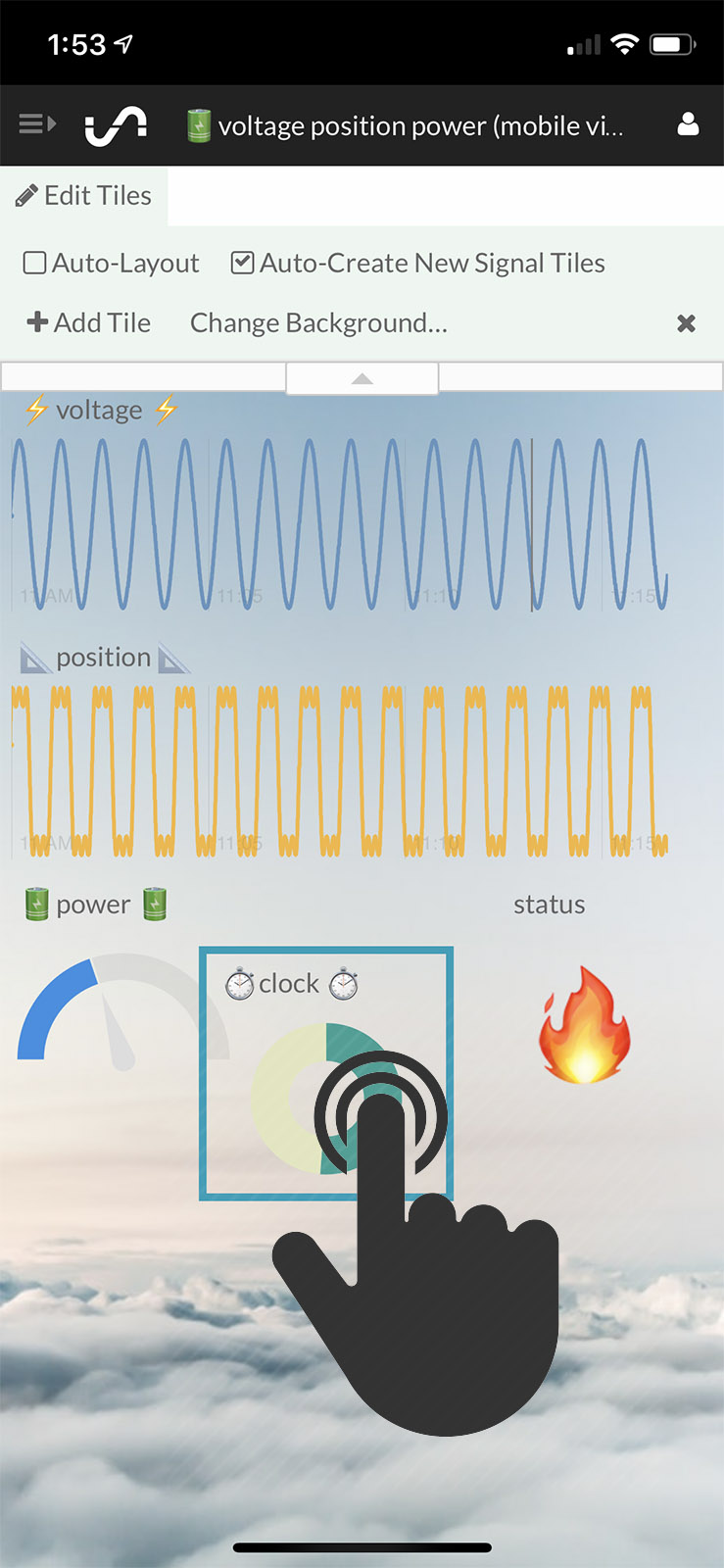
You can move individual tiles to different locations with a single finger drag.

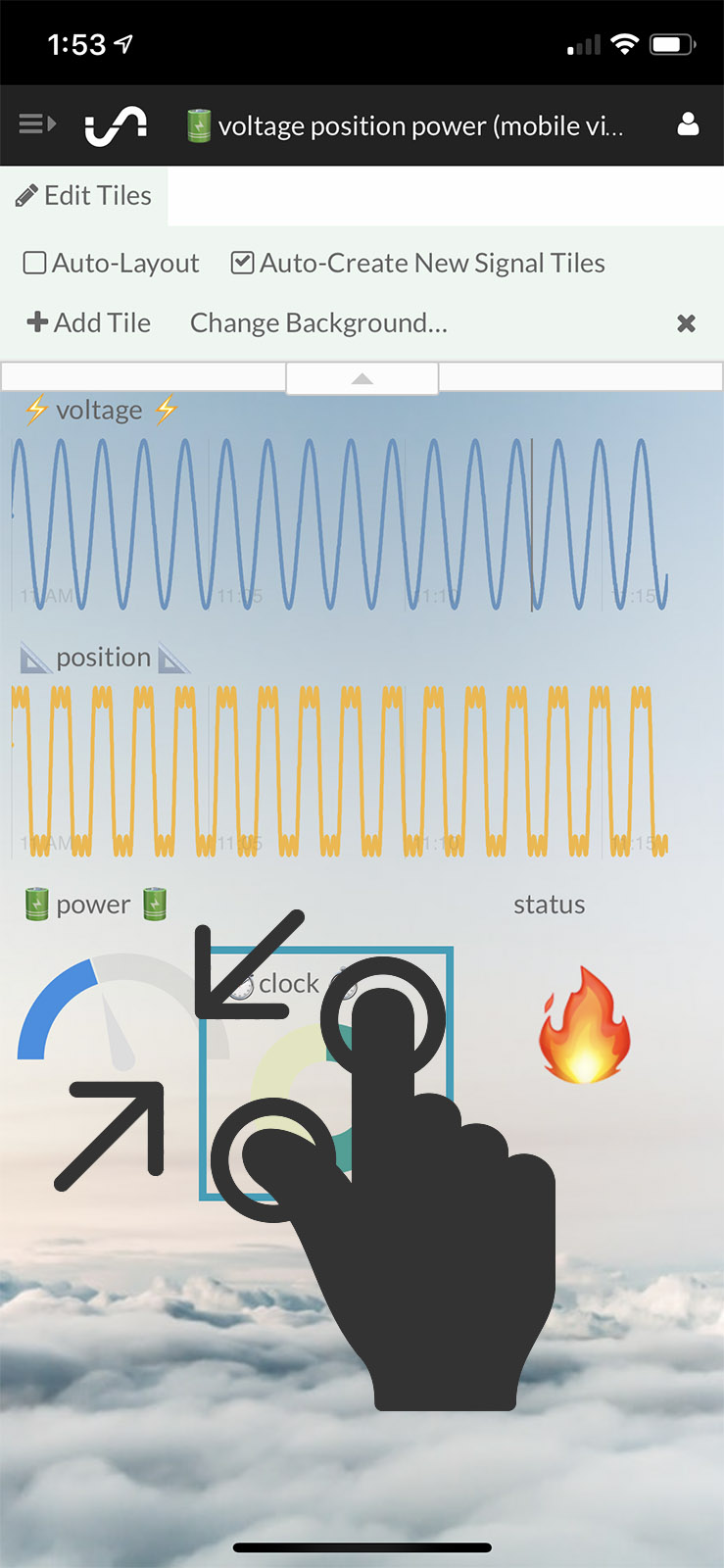
You can resize individual tiles with pinch zoom.

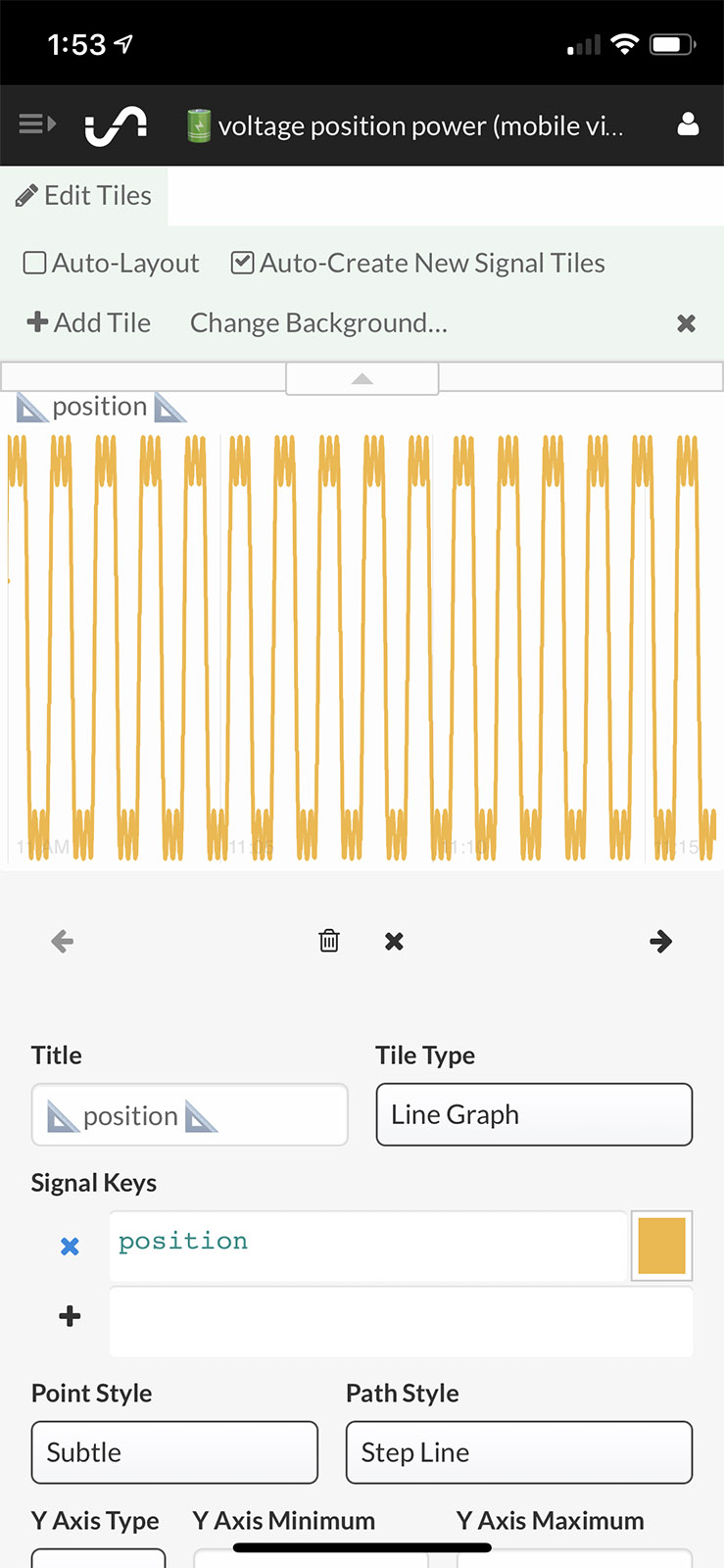
You can edit tile draw types, names, signal keys, etc. by tapping on an individual tile to bring up the tile settings menu. When complete, click the 'x' icon in the middle of the menu to save your tile edit changes and clear the settings menu from the screen.

Once all of your dashboard edits are complete, click the 'x' icon at the top right to close out of Edit Tiles mode. Your changes will be auto-saved.