Embed a Dashboard Into Your Website
| Quick Start | Example | Live Demo | Enterprise vs Non-Enterprise Embeds |
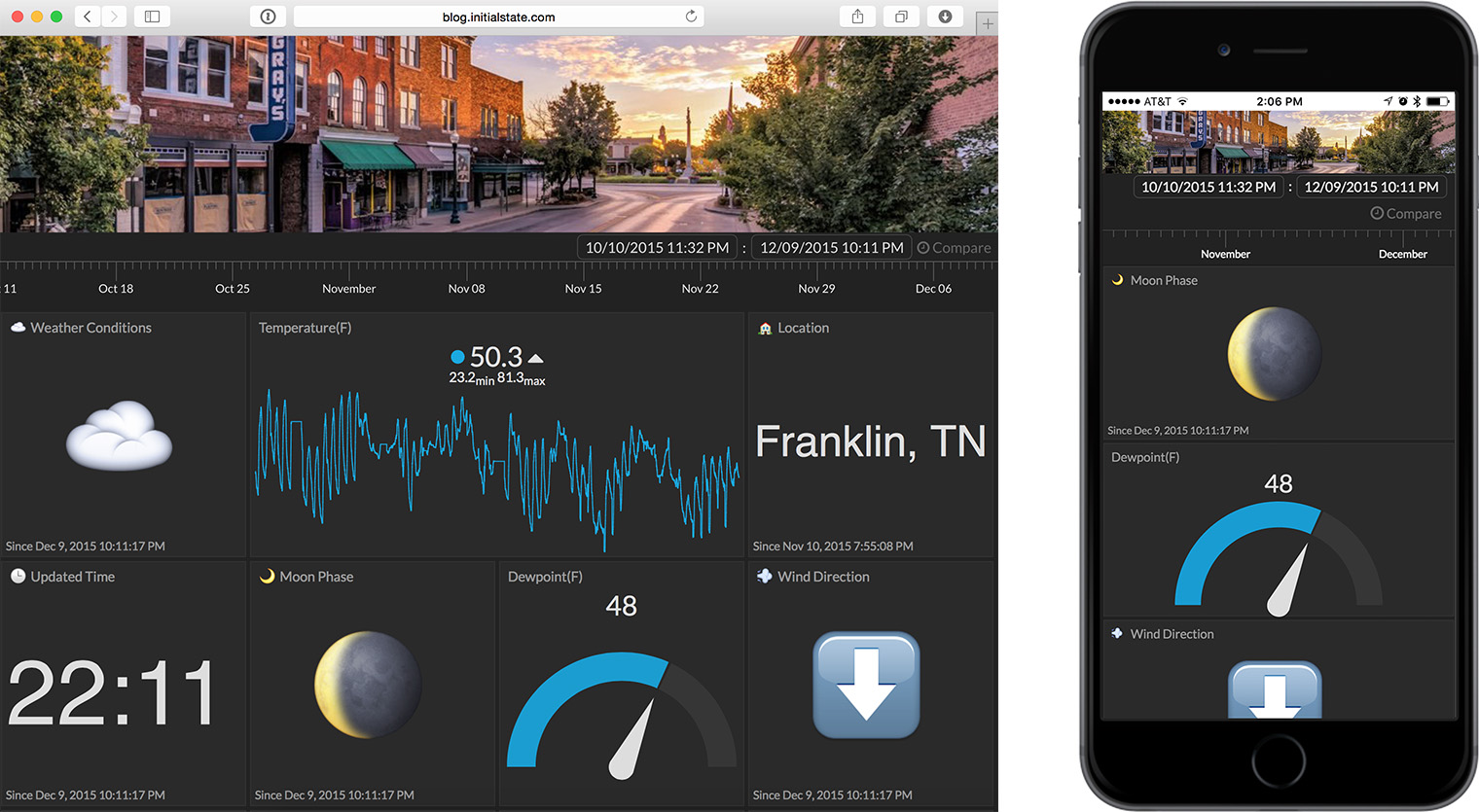
Publishing any Tiles dashboard to your website or blog is super easy and requires almost no coding effort. Any bucket that you own has the option to be shared by embed. When enabled, a simple iframe embed HTML element is generated that you can copy and paste into your website or blog. This allows you to wrap whatever design, branding, or tools you want around your real-time Tiles dashboard. As data is streamed into your dashboard, every viewer will see it update in real-time just as you do when you are inside of your Initial State account.
Quick Start
Step 1: Share by Embed
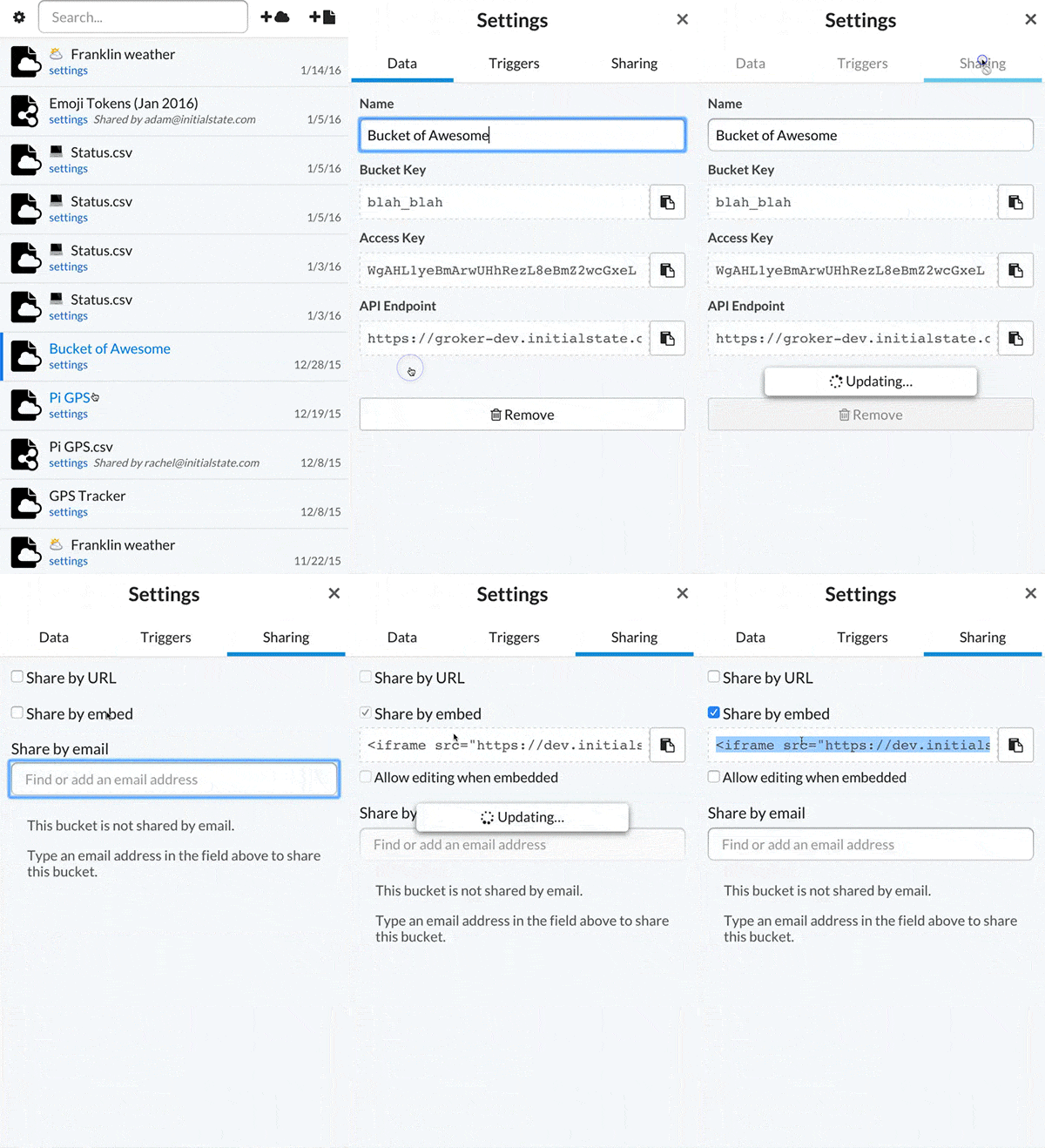 |
To generate an iframe element, click on the "settings" link for the desired bucket in the bucket shelf, go to the Sharing tab, check the "Share by Embed" checkbox, and copy the iframe element text. |
Step 2: Embed into your Website
Once you have enabled embed sharing, your Tiles dashboard is ready to go live on your website. Simply paste the iframe HTML element into your website or blog, set the width and height, and your dashboard is live to the world. It is that easy.
Complete Example
A Responsive Tiles Dashboard
Let's step through building a simple Tiles iframe embed that is responsive for viewing on a laptop or a mobile device (*note if you want to build one dashboard that is responsive for both desktop and mobile, you will need to leave Auto-Layout on in your dashboard settings). First, get the iframe HTML element from the share link on the bucket shelf. In this example, we have a weather dashboard and the iframe element is:
<iframe src="https://www.initialstate.com/embed/#/tiles/ejhPg32t8chfqvoPd3g78iWAblH6HQRL"></iframe>
Let's put a simple image header that sits at the top of the webpage and the dashboard underneath the image.
weather.html
Next, let's make the image and dashboard 100% width and fill up the height of the browser with the dashboard in the css stylesheet.
weather.css
That's all we need to do.
View this example on your laptop/desktop and on your mobile device. You can even create an icon shortcut on your iOS device for quick access to your application (see here).
Demo
Below is an example of a live, real-time Tiles embed:
Enterprise vs. Non-Enterprise Embeds
Enterprise embeds are available in an Enterprise account. Enterprise users may generate an unlimited number of enterprise embeds at a monthly cost per embed. Enterprise embeds include a license that allows them to be resold as a component of business applications.
Non-enterprise embeds are available in an Individual account. Individual users may generate up to 10 non-enterprise embeds at no extra cost for personal use. Non-enterprise embeds may not be resold or be a component of a business application.