Add Icon to iOS Home Screen
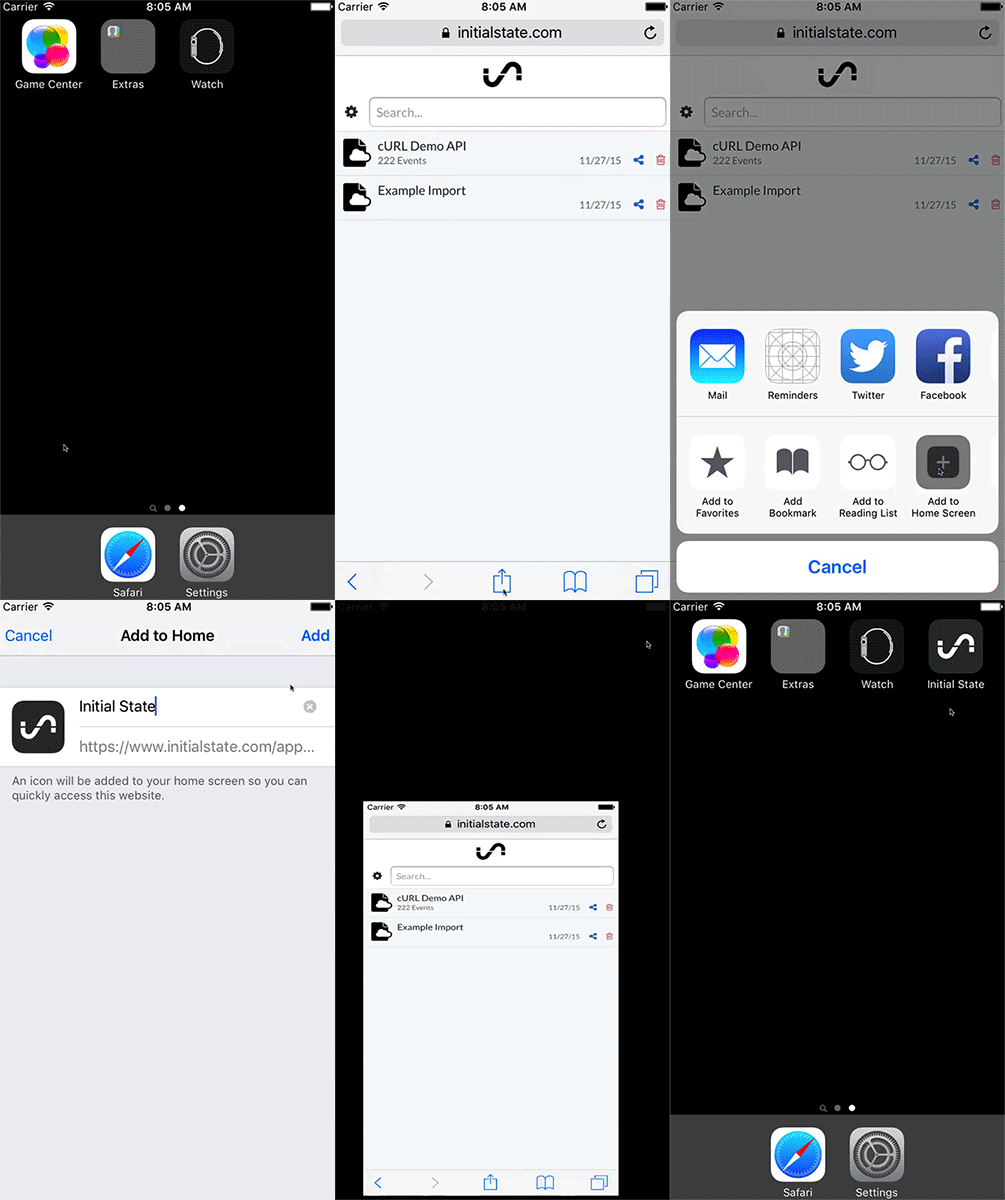
To add an Initial State icon to your home screen on your iOS device:
- Navigate to a public share URL for the desired Tiles dashboard (info on how to generate a public share URL).
- Click on the "Send To" button on the bottom toolbar of Safari.
- Click "Add to Home Screen".
- Click "Add" on the Add to Home pop-up screen.
An Initial State icon will be placed on your home screen like any other app.
One of the best benefits of adding an icon to your iOS home screen is getting a full screen view of your data. The top and bottom menu bars are removed in this mode:
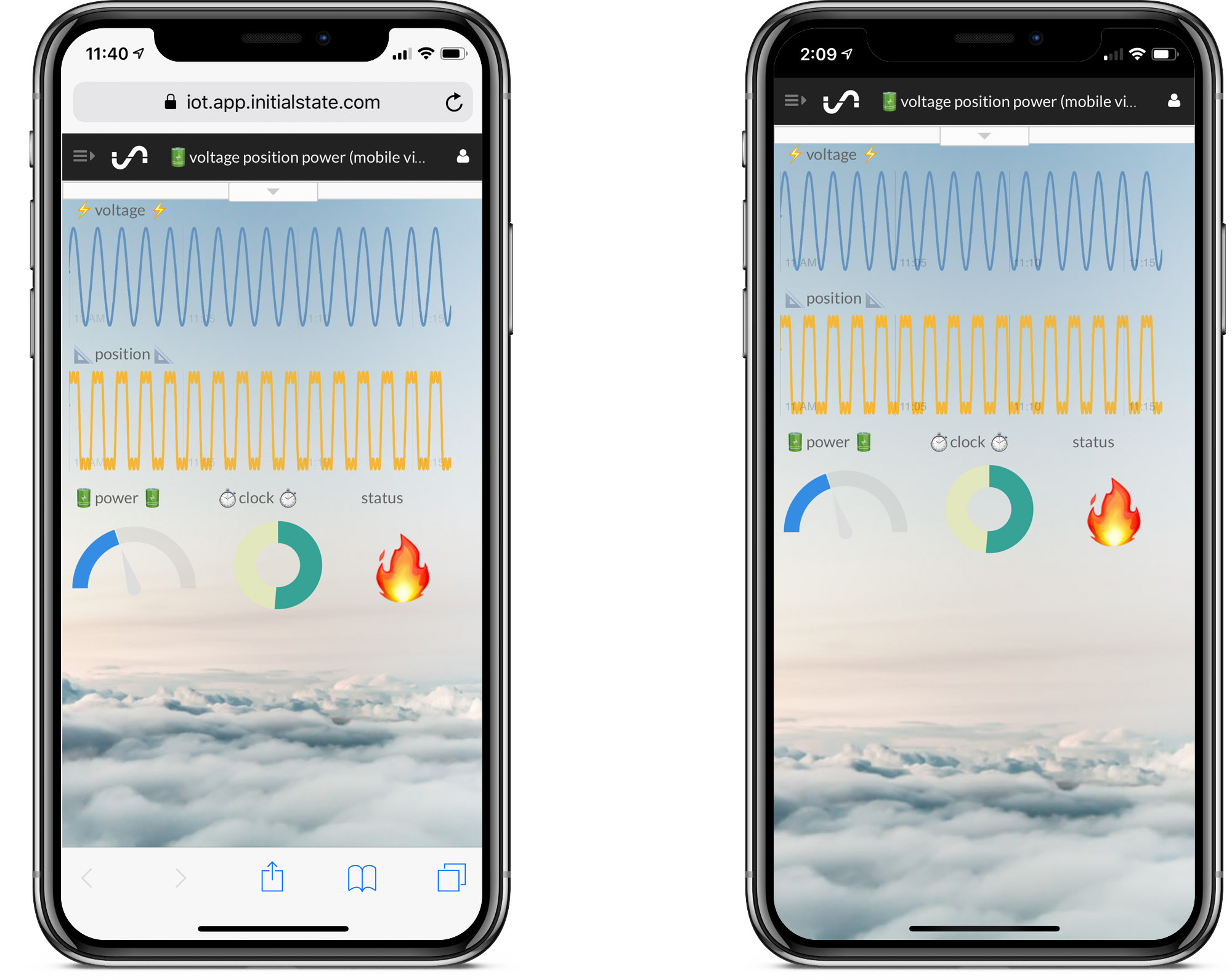
Tiles view on Safari (left) vs Tiles view launched from home screen icon (right)
*Note: You can add an iOS icon for a public share URL and not require a login each time you view your data. Alternatively, you can add an iOS icon for the base app (https://iot.app.initialstate.com) and access all of your data buckets through your mobile optimized bucket shelf after logging in.