2. Verify Keithley Firmware Version
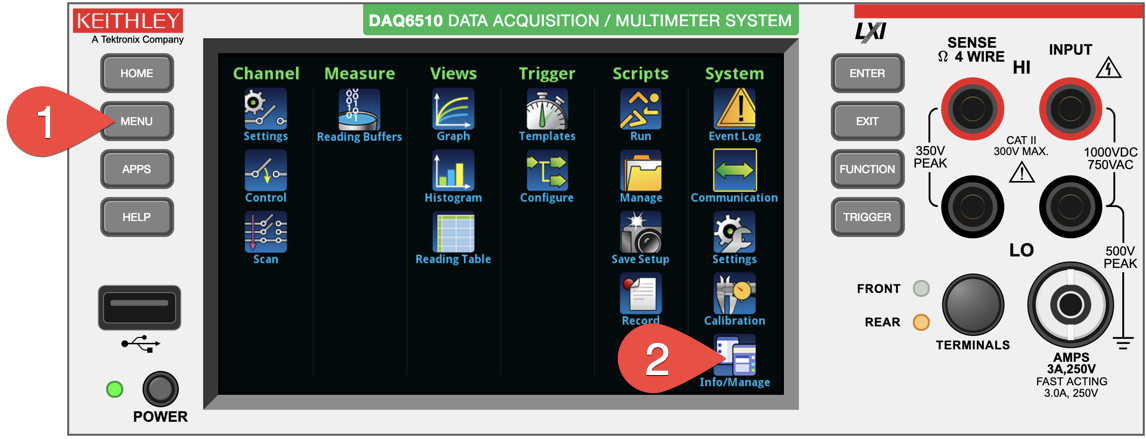
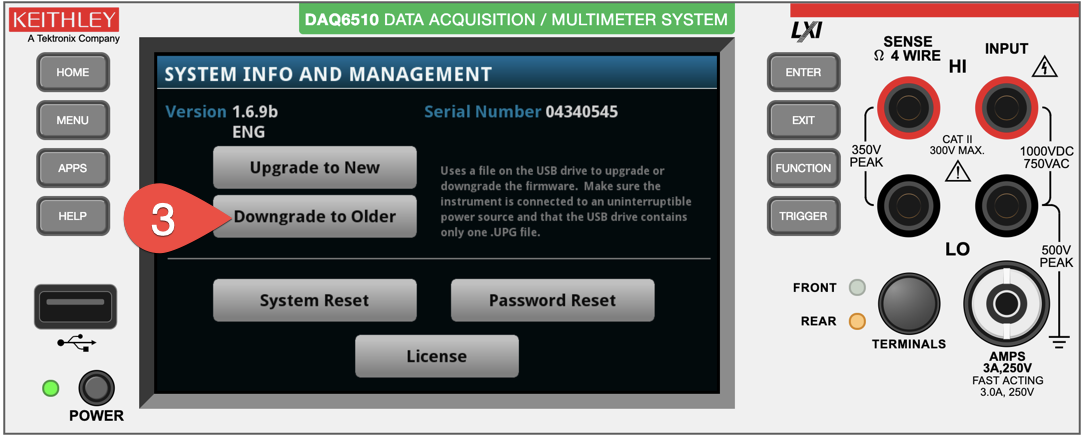
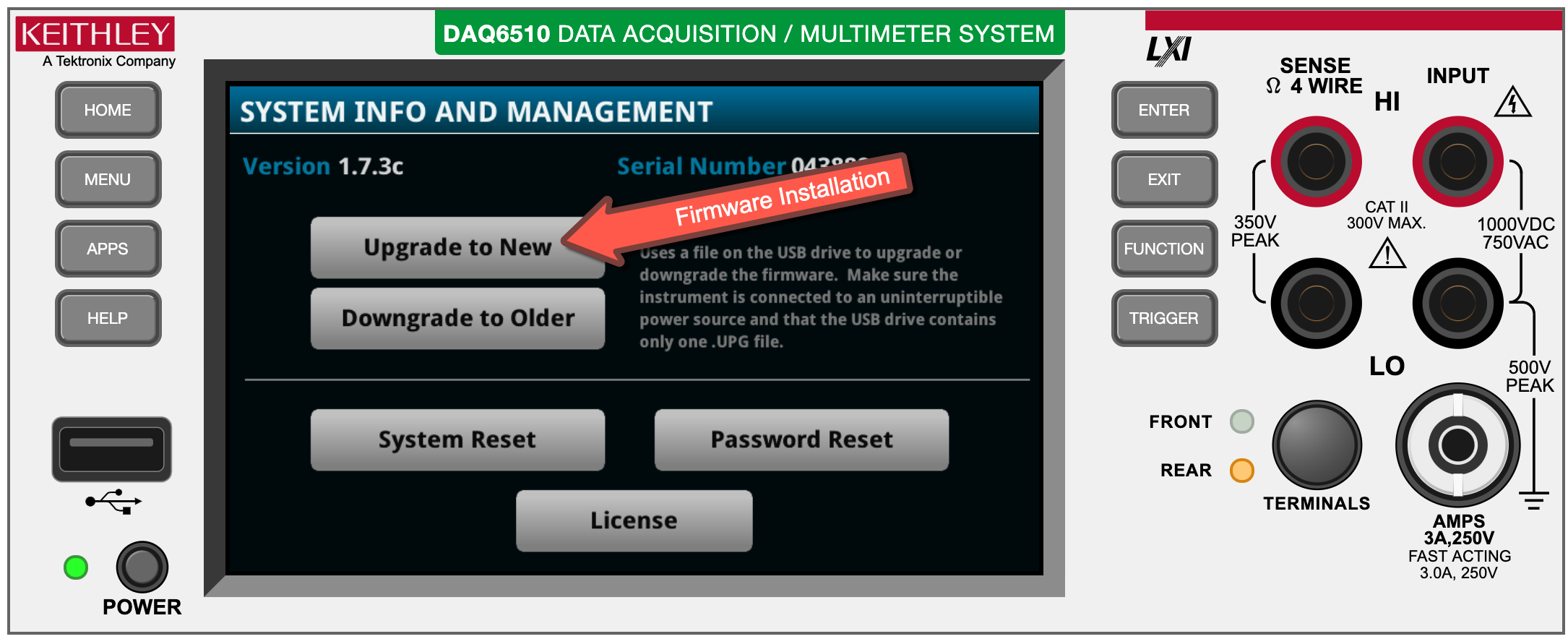
To verify your firmware version press "Menu" and navigate to the "Info/Manage" Menu. You will find the current Version of the firmware in the top left corner.
Is your Firmware Version 1.7.3 or Newer?
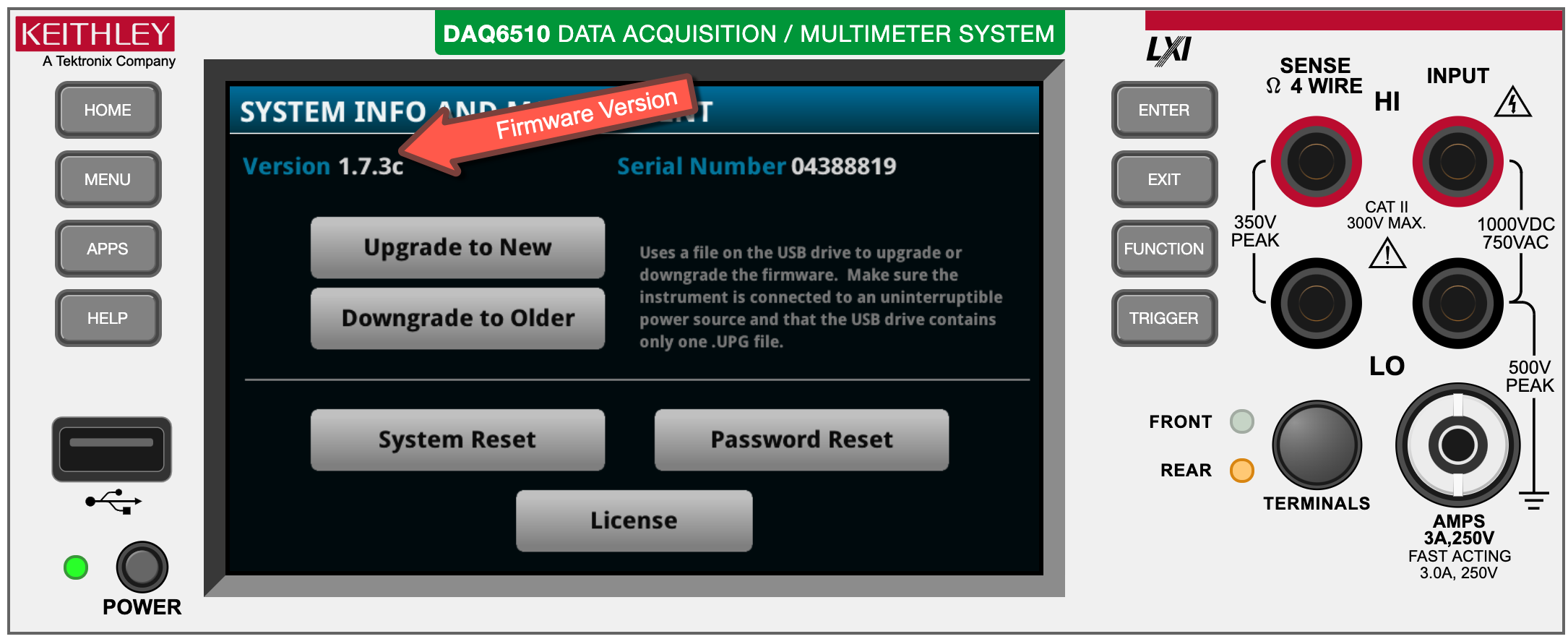
If your device already has firmware version 1.7.3 or newer your device came preloaded with the proper firmware and Initial State App.
- YES? Skip to the next step for Registering your Initial State Account
- NO? Continue below to install new firmware. It just takes a few minutes.
Install Latest Device Firmware and Software
In order to enable your Keithley DAQ6510 or DMM6500 to stream data to Initial State, you must verify you have the supported firmware on your device. This new firmware coupled with the Initial State App and upload script adds the following capabilities:
- Native Streaming connection between Keithley instrument and Initial State.
- UI and Touch screen elements to configure your measurements and streaming configurations.
- Automation scripting API that allow targeting Initial State through the TSP command set.
There are four steps to updating your instrument.
- Get the files you need on to the root directory of a USB Stick
- Install the latest firmware
- Copy the Upload Script into the "Internal Scripts" area
- Copy the Initial State App to the "Local Apps" area
Step 1: Download 3 Required Files to USB Stick
The Firmware bundle contains support files for DAQ6510 and DMM6500. For each platform you will see a firmware file (*.upg) and release notes for that version. In addition, there is a script file (*.tsp) and an app file (*.tspa) which are cross-compatible between the two devices.

- Click above links to download the firmware bundle.
- Unzip the bundle on your computer.
- Insert a USB stick to your computer.
- Load the appropriate firmware file (*.upg) to the root of a USB stick. The appropriate file is found in a folder labeled either DAQ6510 or DMM6500.
- Load "Initial_State_Upload_Data_Script.tsp" to the root of the USB stick.
- Load "InitialStateApp.tspa" to the root of the USB stick
- For simplicity, there should be no other files on the root of the USB with the extensions upg, tsp, or tspa.
- Eject and remove the USB drive
Step 2: Install the Latest Firmware
The Initial State App must have at least 1.7.3 or newer on the device. If your device already meets this requirement you can skip ahead. If not, Install the firmware that should now be contained on a USB stick (*.upg)
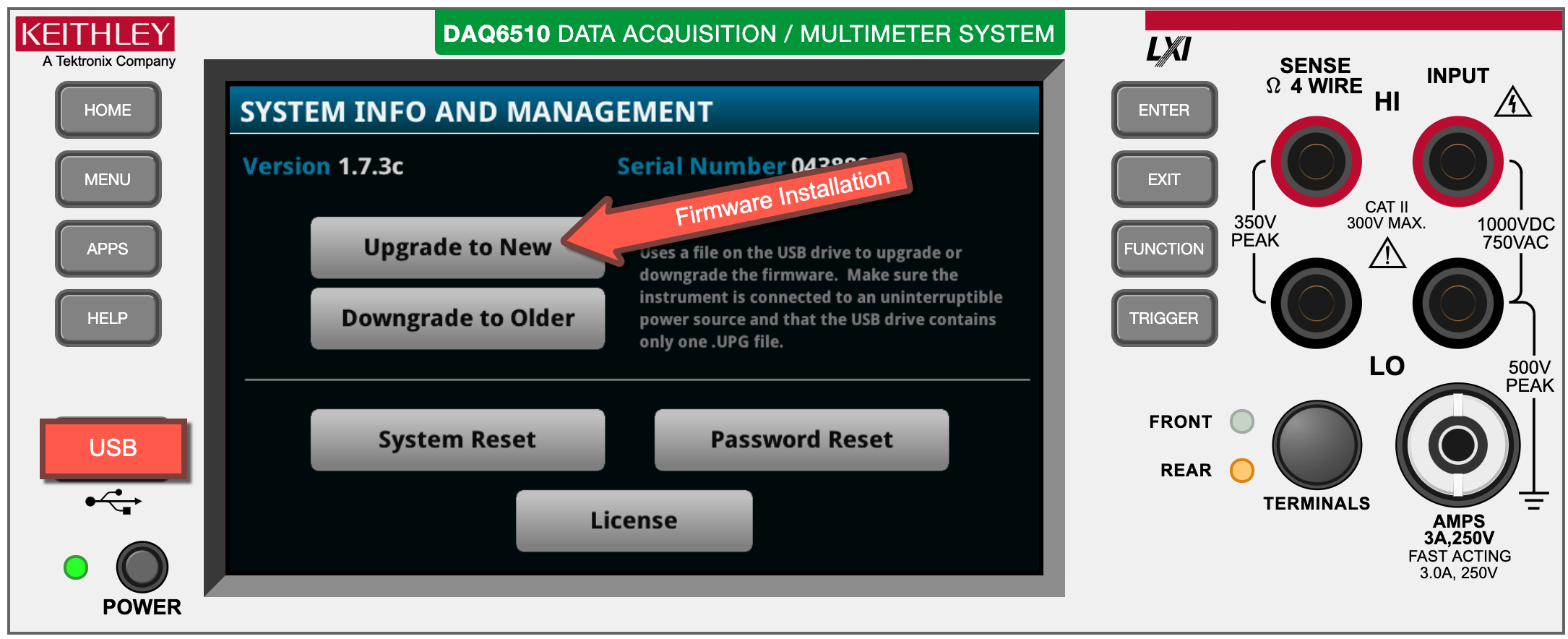
- Insert the USB stick from Step 1 into the port on the front of the device.
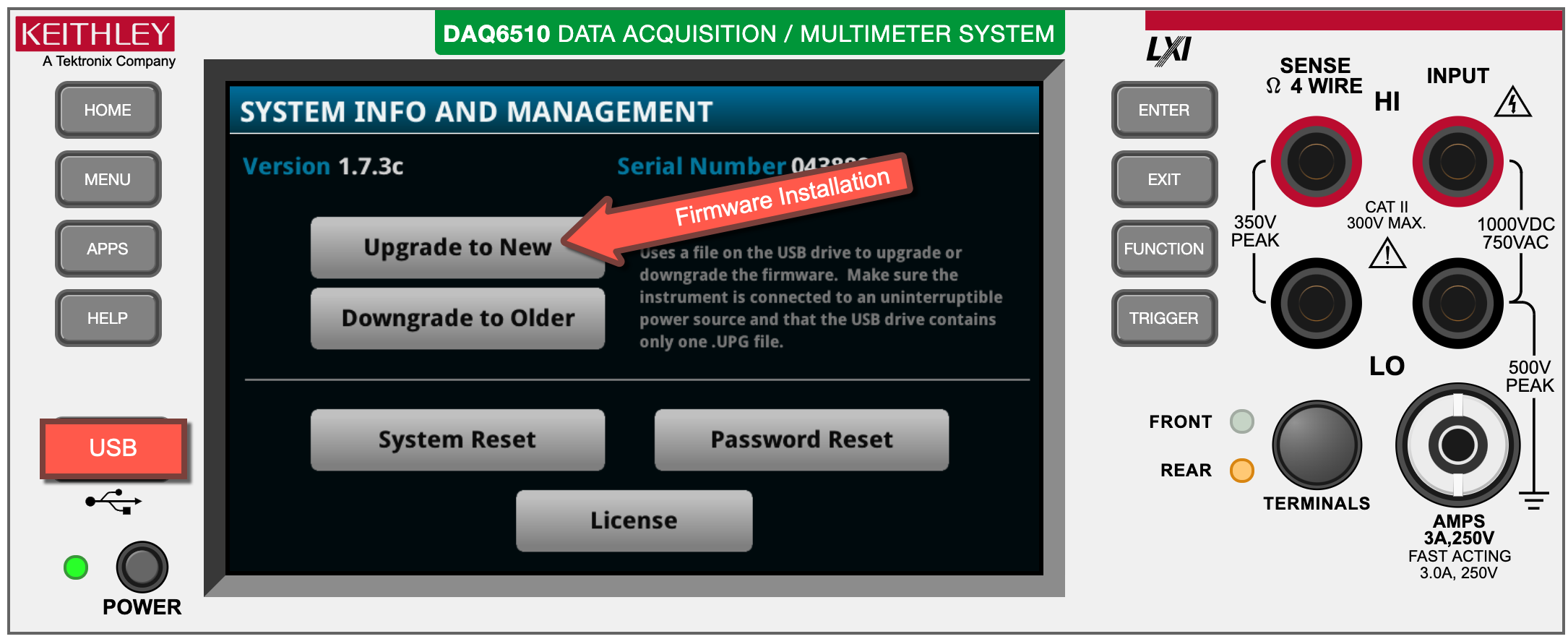
- Navigate to Menu >> System: Info/Manage
- Press "Upgrade to Newer"
- The device will read the upg firmware file from the USB stick and begin installation.
- The update will take a few minutes and show progress bars on the front panel. Once it is complete, you will receive an UPGRADE COMPLETE message and an option to RESTART. Click Restart to start the instrument with the new firmware.
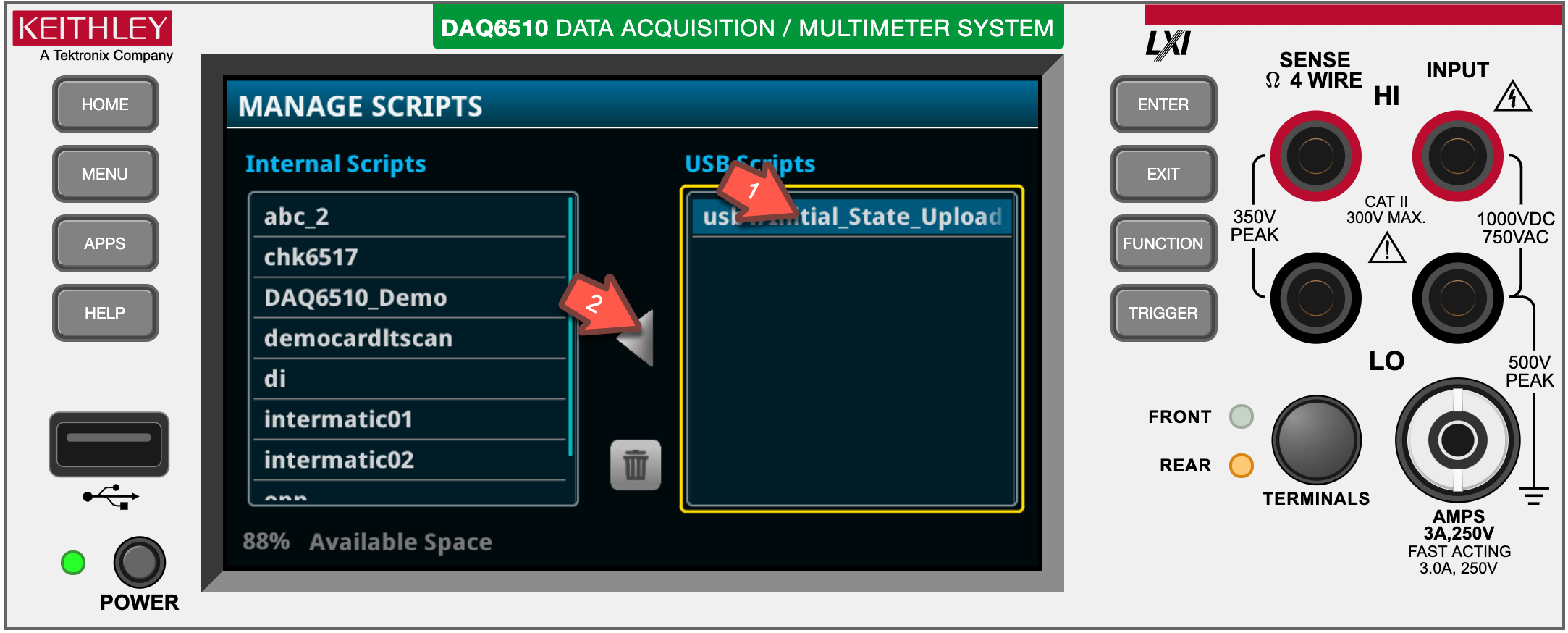
Step 3: Copy the Upload Script into the "Internal Scripts" area
Now you need to copy the script on the USB drive (*.tsp) to "Internal Scripts" on the device.
- Navigate to Menu >> Scripts: Manage
- You should see "Initial_State_Upload_Data_Script.tsp" in the USB Scripts (it may be truncated on the screen).
- Click the USB script
- Click the left-facing arrow to copy the script to "Internal Scripts"
Step 4: Install the Initial State App
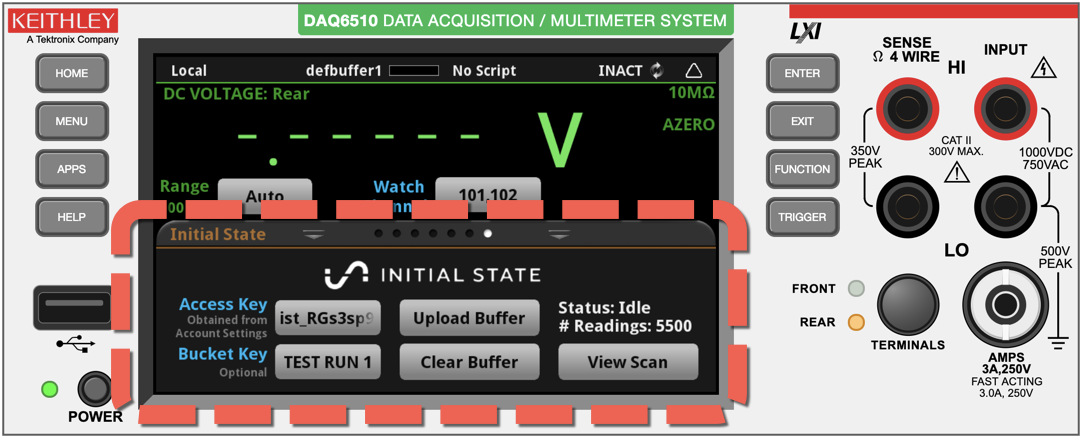
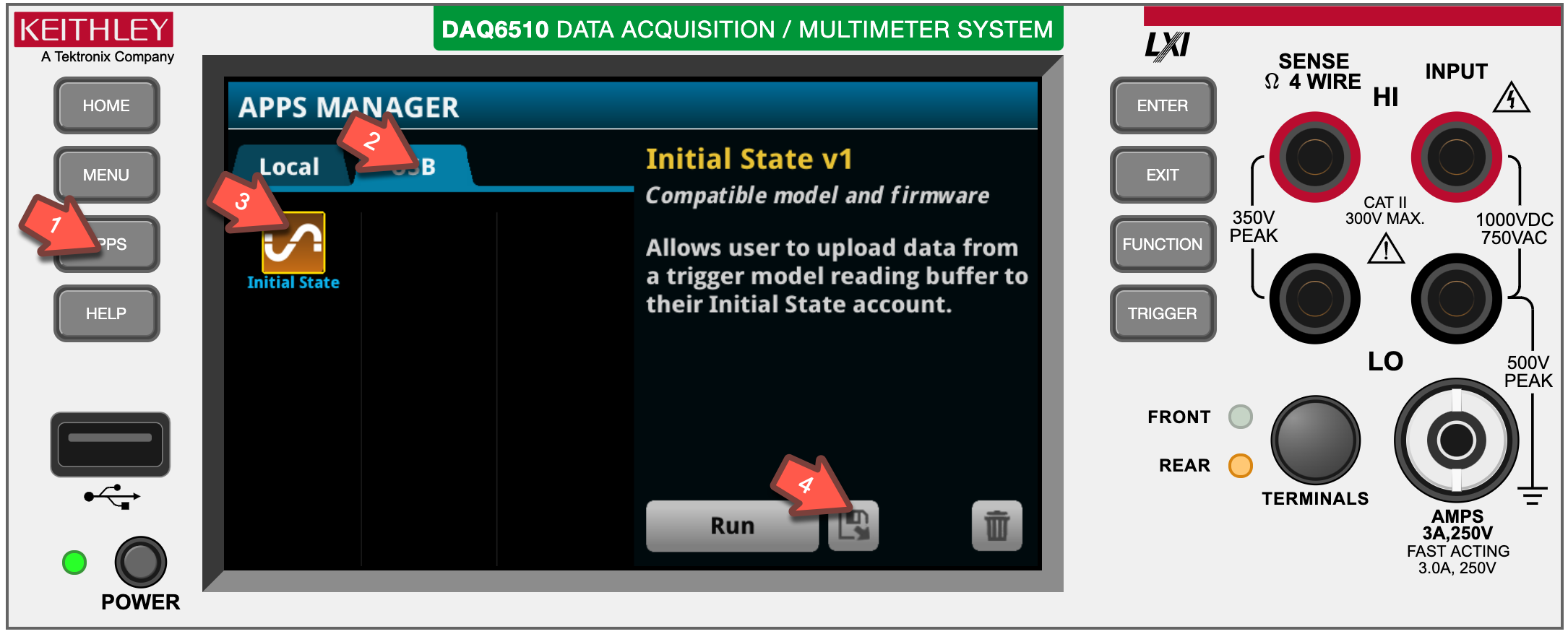
At this point, make sure the USB stick containing the *.tspa file is still in your unit. This application is what you will ultimately use to kick of scan that sends data to Initial State.
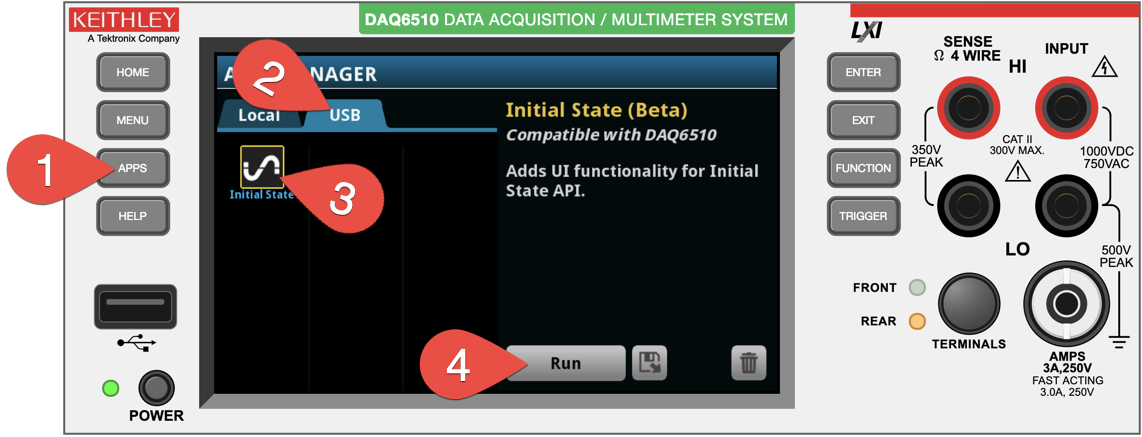
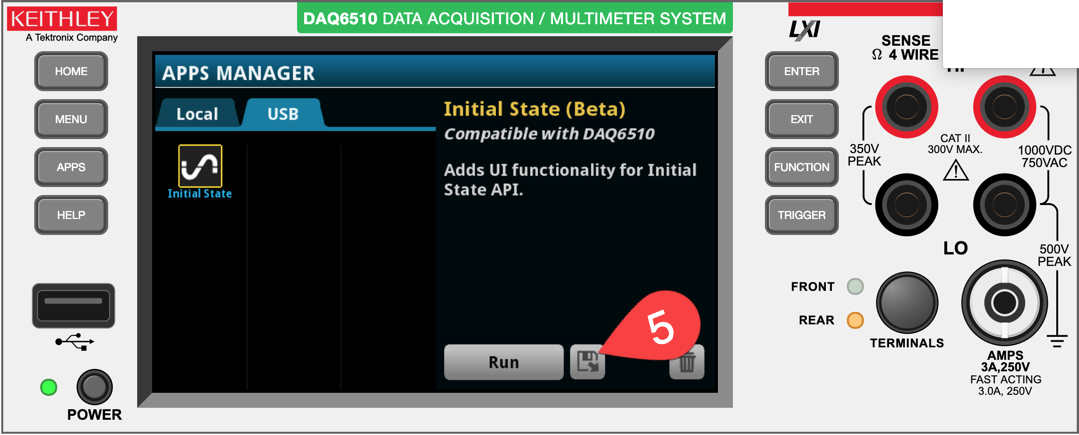
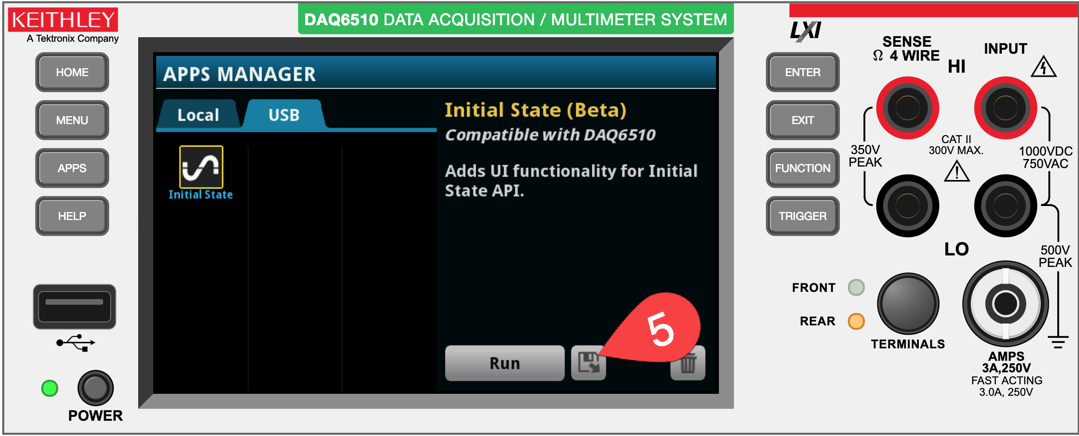
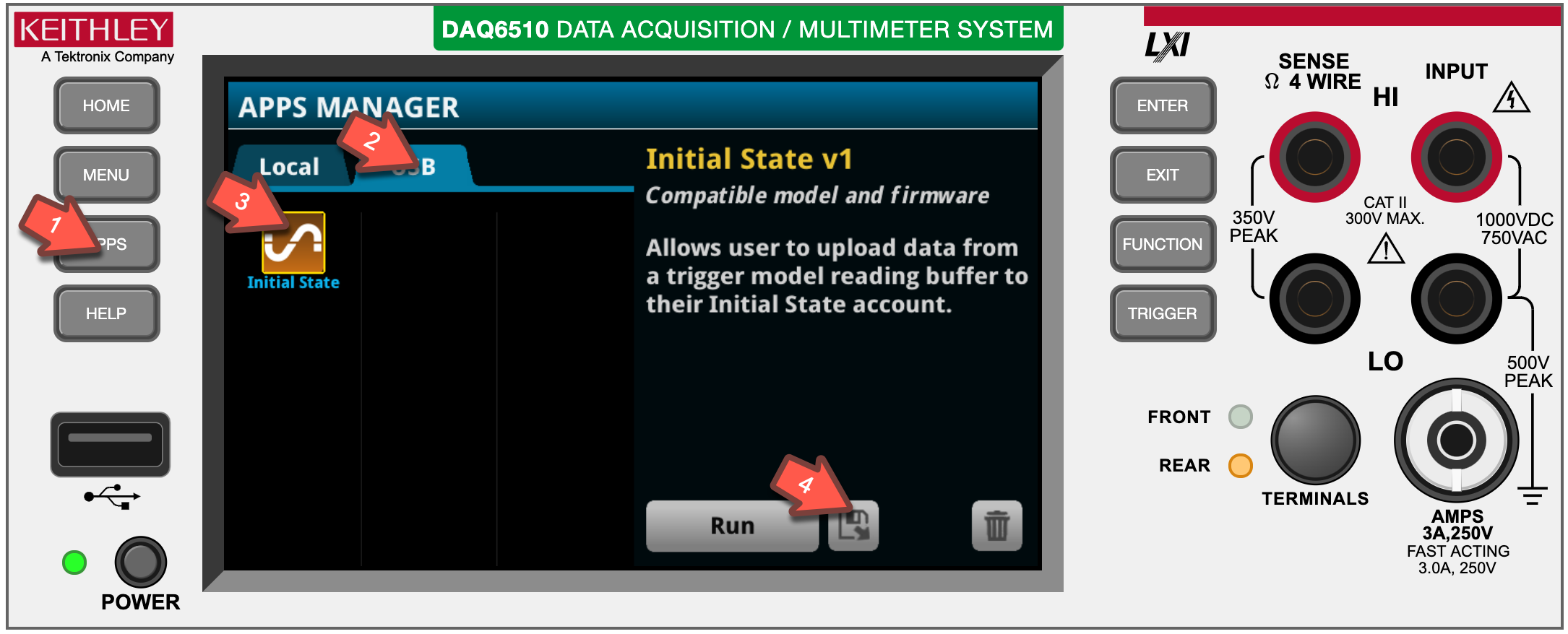
- Click the "Apps" physical button on the front panel of your Keithley instrument.
- With your USB stick loaded with the *.tspa file and installed click the USB tab, and you should see the Initial State app icon.
- Click the Initial State app icon. It highlights with a yellow border.
- Click the "Save" button (which is the floppy disk icon)
Step 5: Check Your Work
After you have completed these tasks there are three places to verify everything is correct.
- Verify Firmware version is 1.7.3 or newer by navigating to MENU >> System: Info/Manage and checking the firmware version
- Verify that you have copied the Upload Script properly by navigating to MENU >> Scripts:Run and checking that checking that "Initial_State_Upload_Data_Script" is available to run.
- Verify that Initial State App is properly loaded by going to APPS and checking that "Initial State" is on the "local" tab.
<< PREVIOUS: Summary NEXT: Initial State Account >>