Data Markers (Annotations)
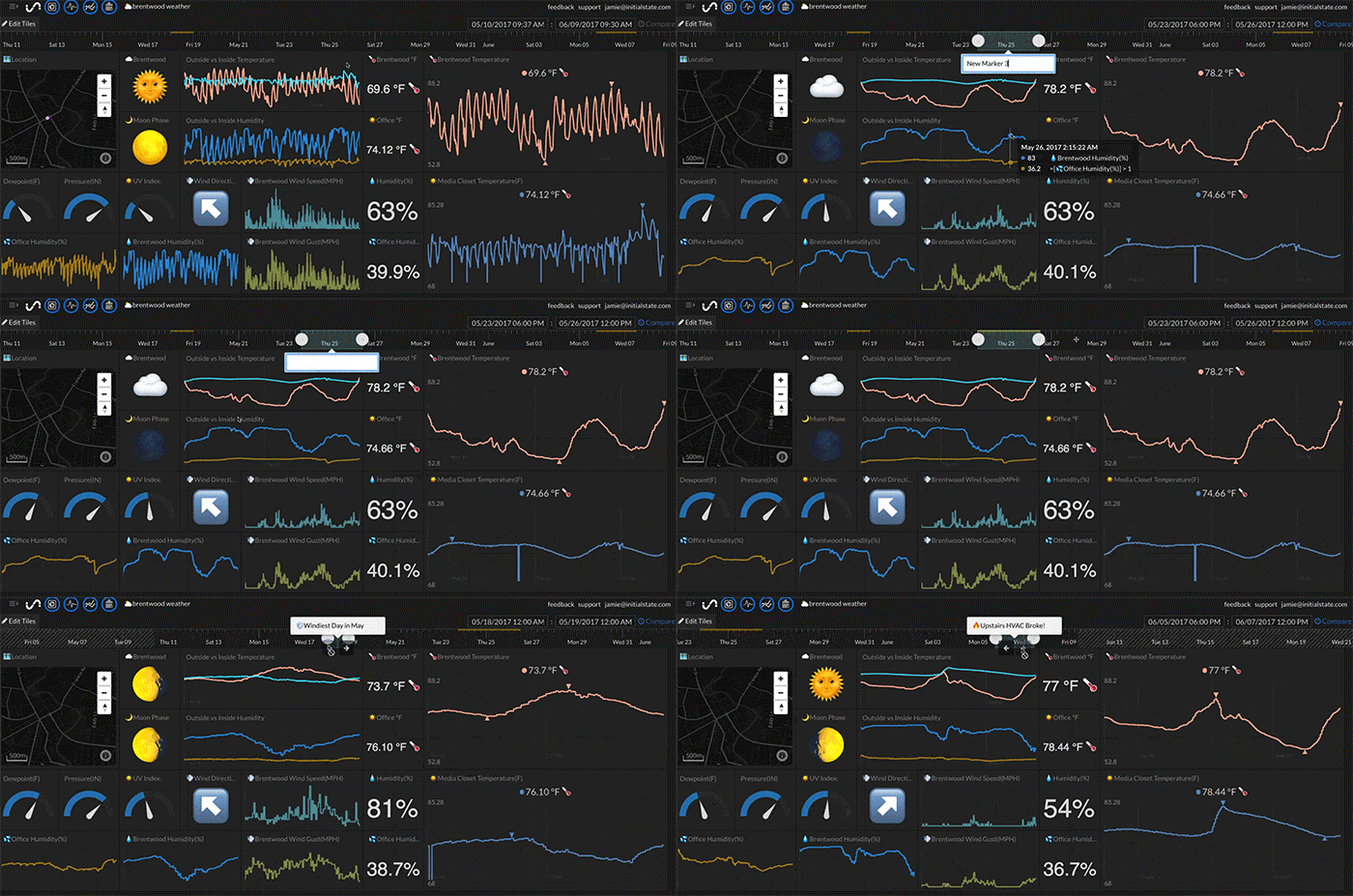
Data Markers allow you to add notes to specific time segments of a data bucket. When viewed, the data marker will display the text-based note as well as zoom into the specified timespan.
| Add a Marker | View a Marker | Edit a Marker | Delete a Marker |
Customizing Data Markers
Add a Marker
- Select a timespan using the timeline.
- Right click on the Timeline and select Add Marker from the drop-down menu.
- Type in the desired note for that timespan (*tip, for Mac, you can hit Control+Command+Space to pop-up a list of emojis when typing).
- Hit <Enter>.
- A marker highlight will appear on the timeline indicating that a Data Marker is present for that timespan.
View a Marker
- Click on the marker highlighted region in the timeline.
- The Data Marker text will appear as a pop-up and the timespan will be automatically selected in the Timeline to match the Data Marker's timespan.
- Use the arrow keys to go to the previous and next data markers.
Edit a Marker
- Click on the marker highlighted region in the timeline for the Data Marker you want to edit.
- Click inside the text pop-up and type in the desired edits.
- Hit enter to save changes.
Delete a Marker
- Right click on the marker highlighted region in the timeline for the Data Marker you want to delete.
- Select Remove Marker from the drop-down menu.
Shortcut Keys
| Arrow Left / Arrow Right | Go to the previous/next data marker. |