Timeline Pan & Zoom
Zooming and Panning
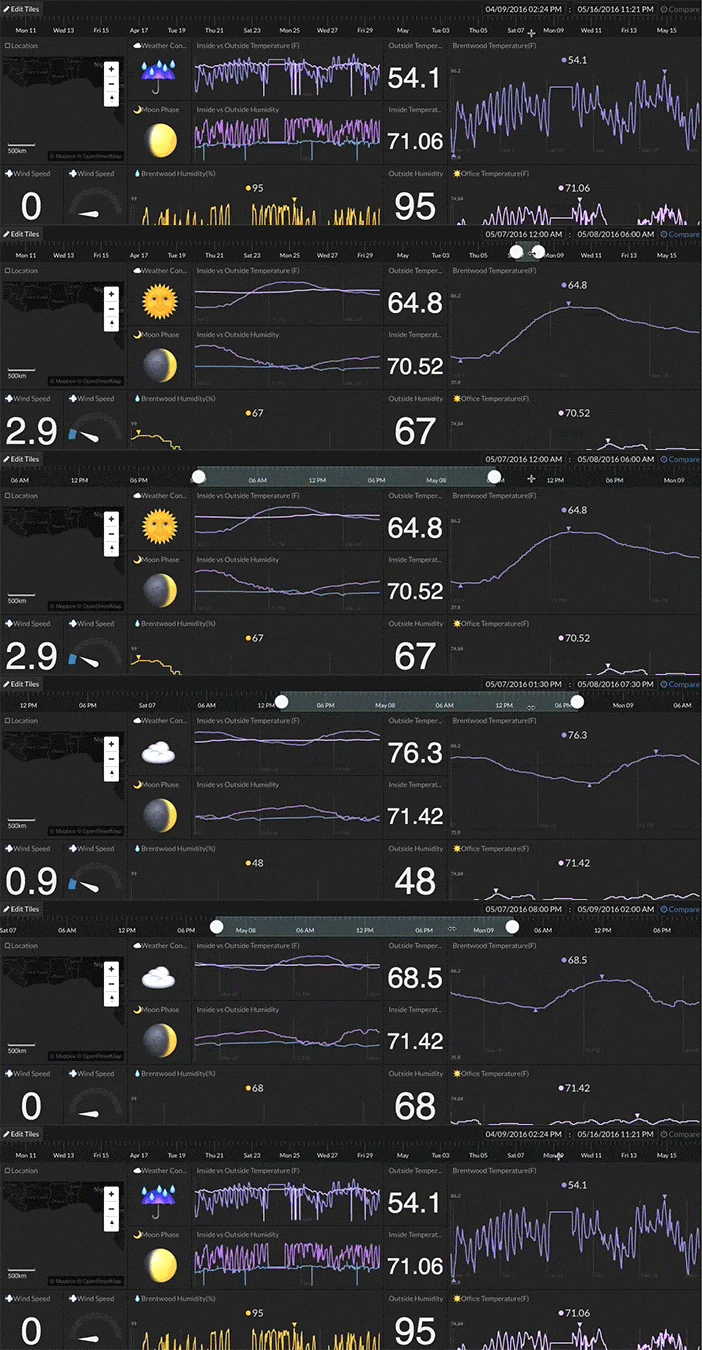
The timeline can be zoomed into using either the mouse wheel, the + and - keys, or using the right-click dropdown menu -> Zoom In / Zoom Out. Zooming into the timeline gives you more control of a time range selection.
When the timeline is zoomed in, the → and ← arrow keys will pan right and left. If you are using a mouse that supports panning (e.g. Apple Magic Mouse) or a trackpad, left/right swipe will pan.
Fit Selection
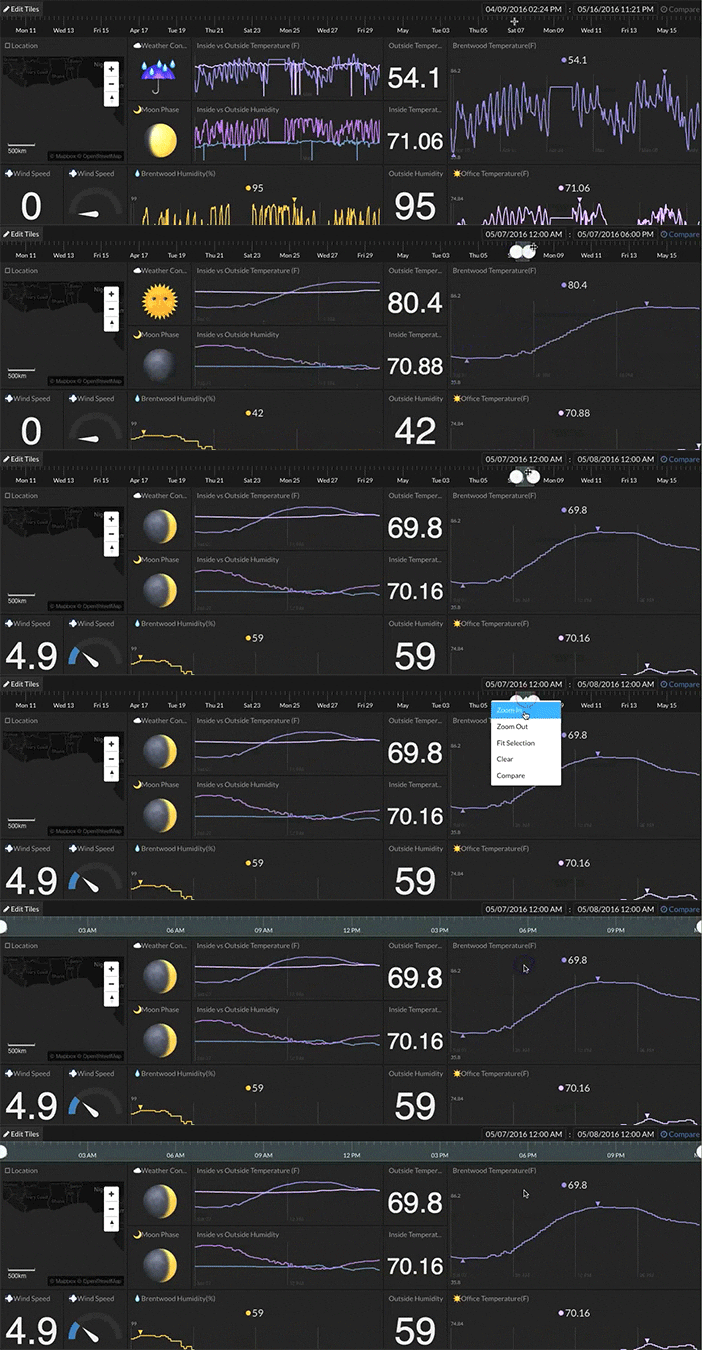
A selected time range on the timeline can be fit to the width of the timeline using the right-click dropdown menu -> Fit Selection.
Restoring to Full View
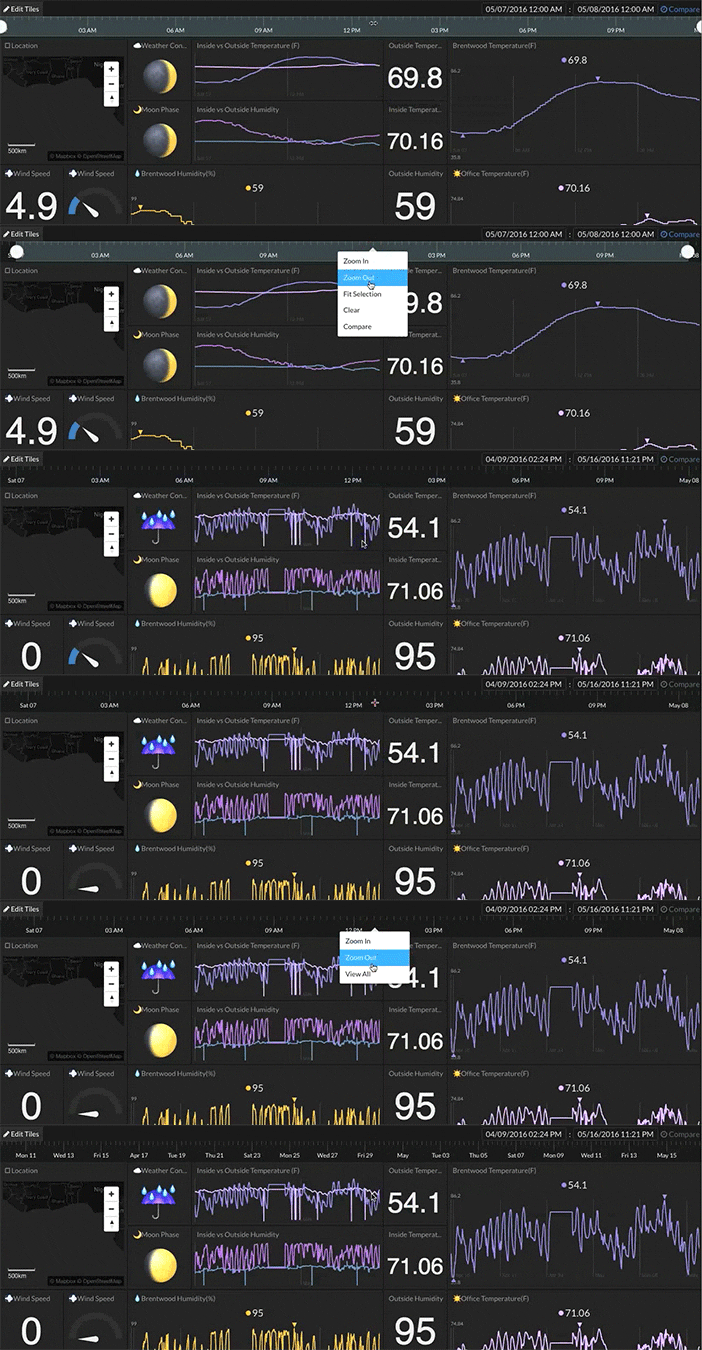
A selected time range can be cleared using the right-click dropdown menu -> Clear or single clicking on the timeline outside the selection. The full timeline view can be restored using the right-click dropdown menu -> View All or by using the shortcut key, ALT+f.